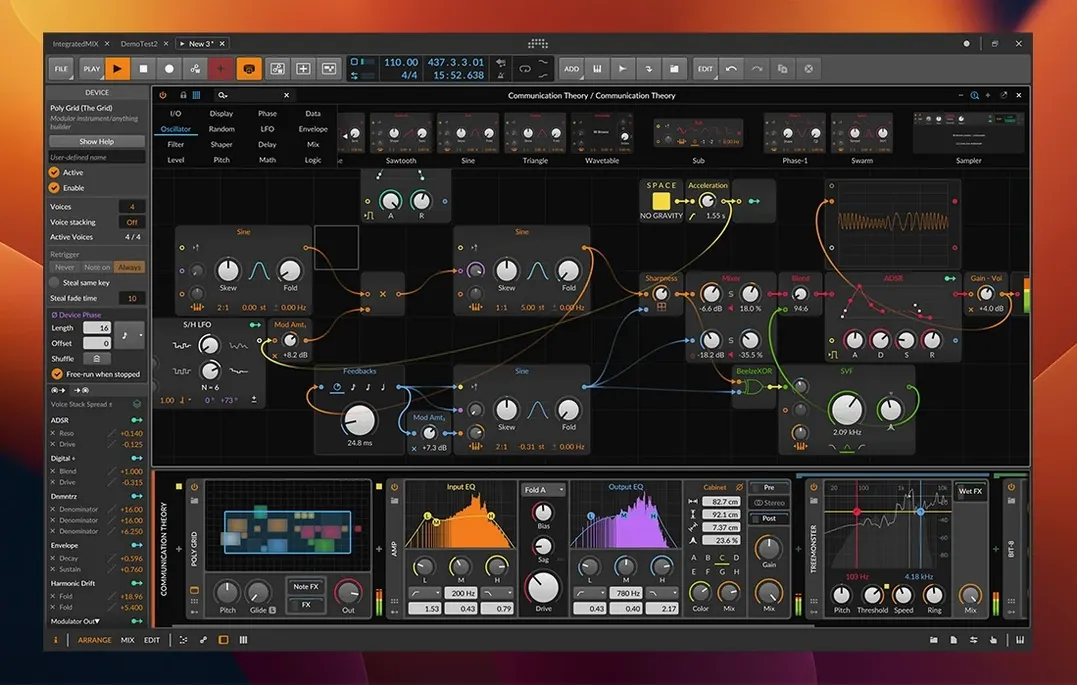
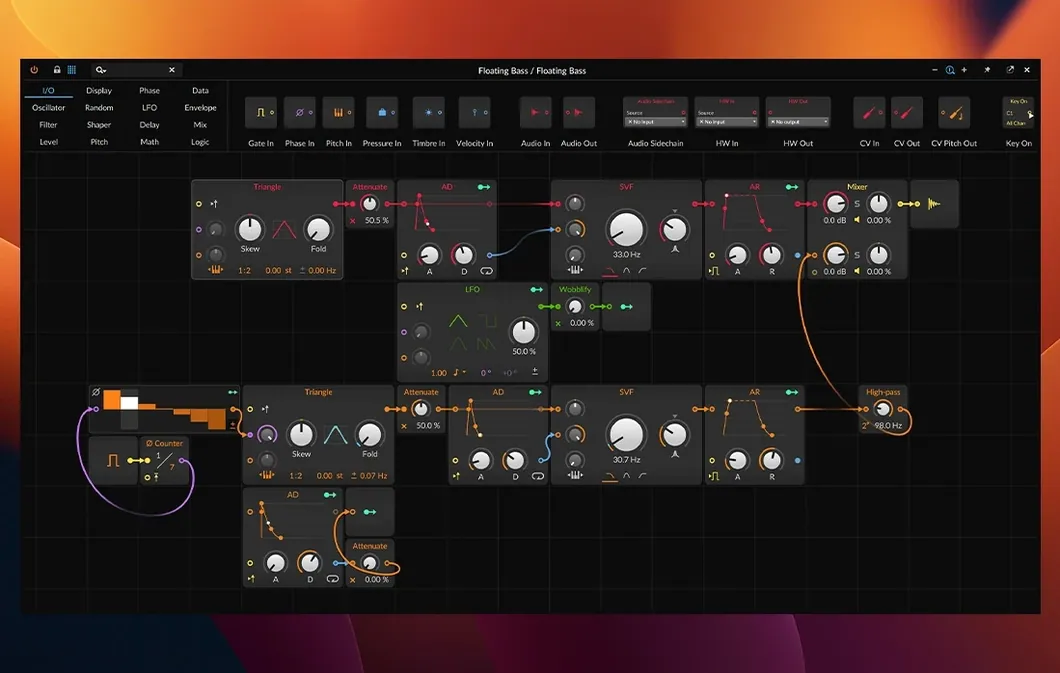
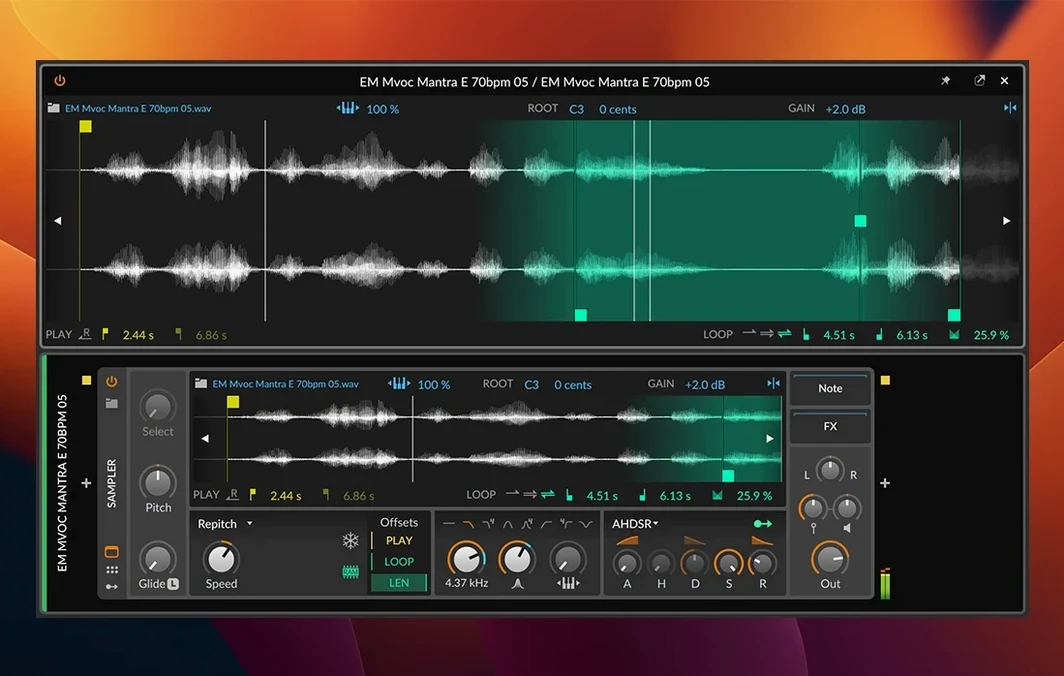
The 6.1 update rewrites the Sampler, adding slicing, Spectral and Fragments play modes, and automatic tempo and pitch detection—tools that open up the sound design workflow rather than just speeding it up.
Micro-pitch editing — per-note tuning offsets that go beyond semitones.
Per-note expression — record and edit Velocity, Gain, Pan, Timbre, and Pressure independently for every note, with full MPE controller support including ROLI Seaboard and LinnStrument.
CV/Gate and Clock in plugins — the built-in devices speak modular; route modulation out of the box and into hardware or other software.
Time-stretching engine — elastic audio across Arrange and Edit workspaces, with the Mix view keeping faders and routing close.
drag to detect
Open an empty project. Drag a drum loop onto a track. The automatic tempo detection snaps it in place without metronome hunting.
Double-click the clip. Switch to the Detail Editor. Right-click the audio and choose Slice to Sampler. Bitwig spreads the slices across the keyboard and opens the Sampler device on that track. Play a few keys — the groove shifts, but the timing holds.
Pull up two more tracks. One gets a bass sound from the built-in Polysynth. The other, a field recording dragged from Finder. On the field recording track, add a delay and a reverb. Map the reverb size to a modulator. A slow LFO, just barely moving it.
Switch to the Mix view. Pan the bass slightly left, the field recording right. The faders stay visible while the arrangement scrolls on a second monitor.
Record a few MIDI chords on a fourth track. Switch the Sampler to Spectral mode. The chords dissolve into glassy textures. Go to Fragments mode, tweak the grain size. Tiny rhythmic stutters emerge. Nothing else in the project changed — the modulation from the LFO still drifts across the field recording.
tighter quantization
Open Preferences. Under Behavior, set Default clip launch quantization to something other than 1 bar. One beat works for tighter performance control. Under Edits, enable Auto-select track on clip selection. It removes an extra click every time you move between clips.
In the Sampler, change the default play mode to Spectral. The stock setting is Classic, but Spectral rewards experimentation faster. Set the Grid mode to stretch slices to tempo — beginners often miss this, and end up fighting timing when changing project BPM.
unsynced loops
Loading a sample and expecting it to sync. Bitwig detects tempo, but only when you tell it to. Right-click the clip and choose Detect Tempo, or let auto-detection run on import. Skipping this leaves loops drifting out of phase with the project grid.
Ignoring the three workspaces. New users often stay in Arrange and never open Mix. But Mix keeps faders, sends and device chains visible while Arrange shows clips. Spread them across two displays. It cuts screen-switching in half.
Using only the Classic Sampler mode. Spectral and Fragments are not extras — they are the sound design engine now. Treating them as afterthoughts misses what the 6.1 release actually delivers.
Over-modulating with no scaling. Every modulator can be remapped, limited, or offset by dragging its range in the device panel. Without scaling, an LFO swings too wide and buries the sound. A few seconds of range adjustment fixes it.
Three workspaces tied together — Arrange, Mix, and Edit share the same audio engine and device chain, so switching between them loses nothing.