
Volume booster — a separate slider that pushes your Mac's output past its usual ceiling. It lives next to your music app, your browser, your call tool.
Boom 3D — system-wide audio layer, not a player
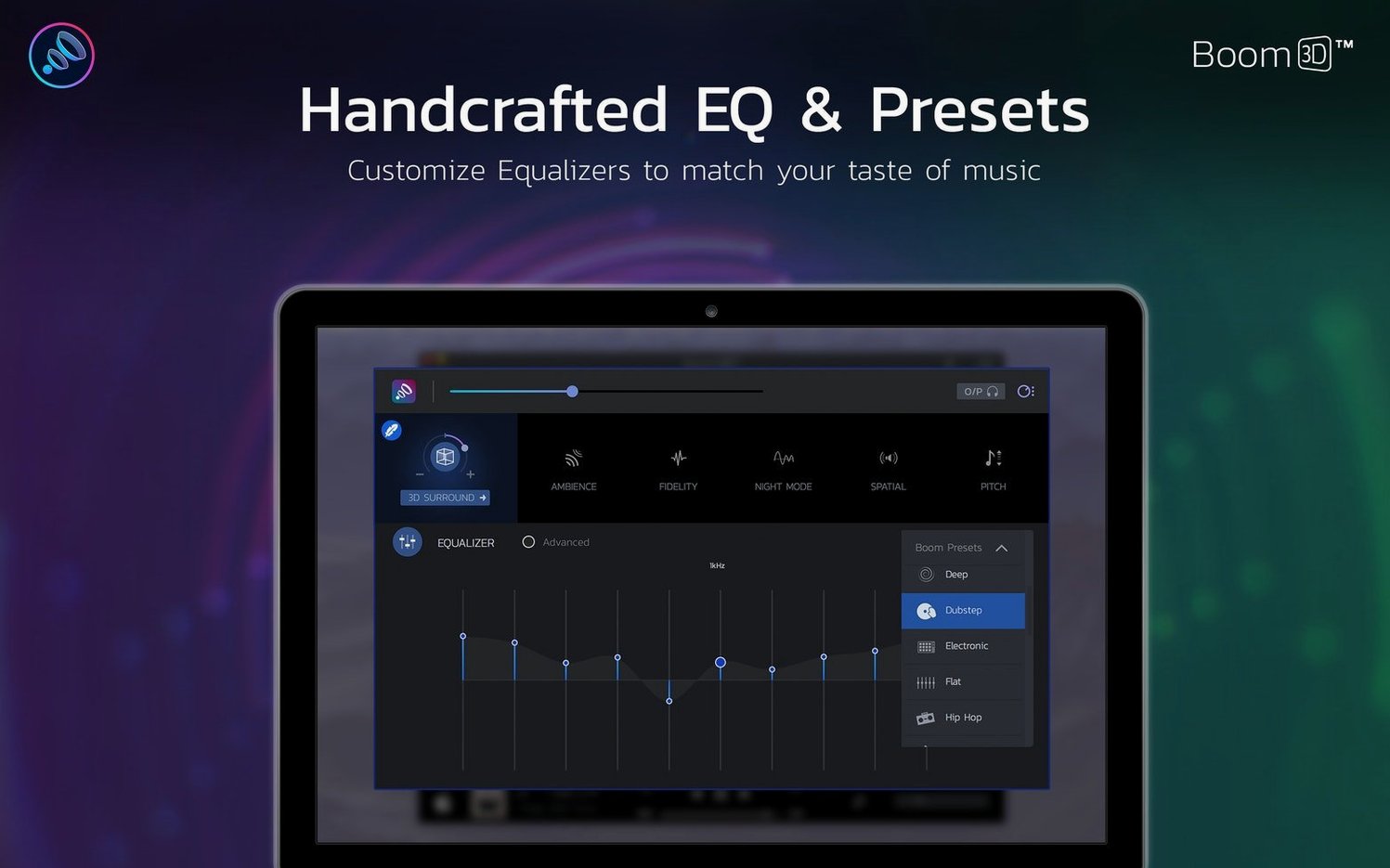
Equalizer — presets and manual bands for shaping the sound
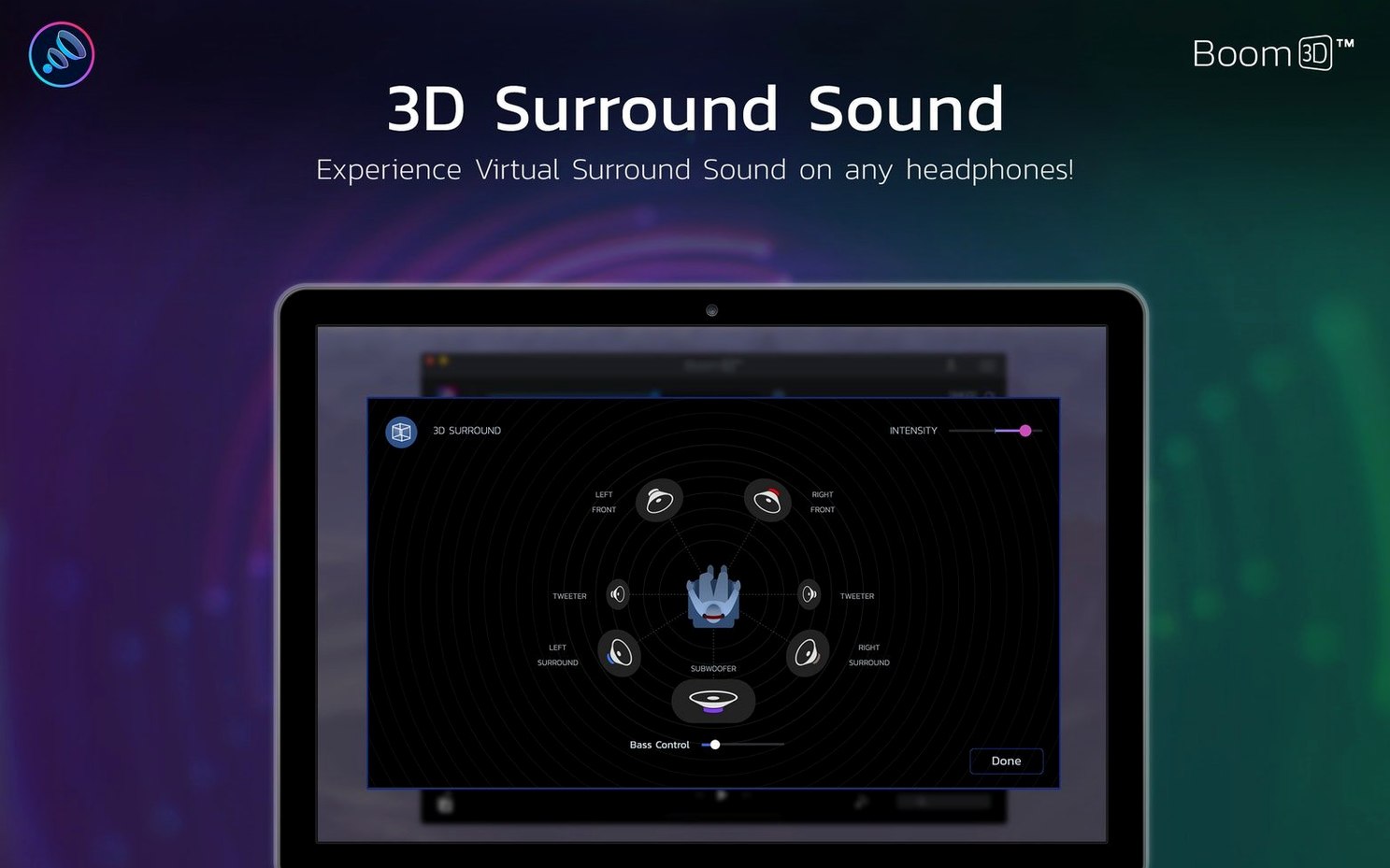
Surround — spatial effect tuned for headphones
Global Delight — the developer, also behind Boom 2
A session with Boom 3D tends to start quietly. You plug in headphones. The Mac’s menu bar shows the little orange icon — click it, and the main panel slides down. Not a window, more of a pull-down console. The volume booster ring sits right at the center.
You drag it from 100% to maybe 140%. The change is immediate. No lag. The music that was barely filling the room now presses against your ears. You back it off slightly, settle around 120%. Then you open the equalizer tab. Maybe it is late, so you pull the 125 Hz slider down a notch and lift 4 kHz just a little — clarity without fatigue. You save this as a preset called “Night”.
Later, a video call comes in. You switch to the per-app volume panel. Your browser stays at 100%. The call app gets a small boost — just enough to hear the other person over the afternoon street noise outside. You never touched the system volume or the app’s own controls. The session ends when you close the lid. Boom 3D remembers everything.
Mixing a podcast
Here is a real workflow. You have a raw interview recording — two voices, one distant, one close. The file is in QuickTime. You are not a sound engineer, just someone who needs it to be listenable.
Open the file. Open Boom 3D. First, enable the equalizer. Choose the “Podcast” preset as a starting point — it already emphasizes the vocal range. The distant voice still sounds thin. Switch to manual mode. Boost 250 Hz by 3 dB, then 1 kHz by 2 dB. The voice gains body. The close voice gets a little boomy, so you cut 80 Hz by 4 dB. Now they sit better together.
Turn on the surround effect. Set it to 30%. The stereo field widens just enough that the two voices separate slightly — one feels left of center, the other right. Not gimmicky. Useful. You play the whole file through, make one more small EQ tweak at 8 kHz to reduce sibilance, and save the preset as “Interview Fix”. The file exports normally. Boom 3D processes the audio on the way out, system-wide. No plugin needed.
This is not a replacement for a DAW. It is the tool you use when a DAW is too much.
Who stays with it
Headphone listeners who work long hours. The kind of person who owns one good pair of wired headphones and wears them through the entire workday. They notice when audio feels flat at low volumes. Boom 3D lifts it without cranking the amp.
Night workers. People in shared spaces. The volume booster means you hear detail without waking anyone. The equalizer lets you pull back bass frequencies that travel through walls.
Older Mac users. Machines with weaker built-in amplifiers benefit the most from the booster. A 2015 MacBook Air playing a quiet video file at full system volume can still sound distant. Boom 3D pushes past that ceiling cleanly.
And tinkerers. People who enjoy shaping sound. Not audiophiles with calibrated equipment — just people who know what they like and want a few sliders to get there.
System‑wide audio hijack
Boom 3D sits between your apps and your output device. It works with Spotify, Apple Music, YouTube in a browser, VLC, QuickTime — anything that makes sound. It does not care about the source.
You can run it with a clipboard manager, a window tiler, a writing app — it stays in the menu bar, unobtrusive. The per-app volume control pairs well with something like SoundSource if you need more routing options, though Boom 3D handles the basics alone.
macOS features still work. AirPlay output goes through Boom 3D’s processing. Bluetooth headphones work. The Touch Bar on older MacBooks shows the volume slider as usual. The only thing you give up is the pure, unprocessed signal path — and for most listening, that is a trade worth making.
Some users look for a Boom 3D Mac torrent when they want to try the full feature set before committing to a permanent install. The app's persistence across restarts and its menu bar presence make it feel native — after a week, you forget it is not part of macOS.
You already have volume controls. This adds headroom and space.