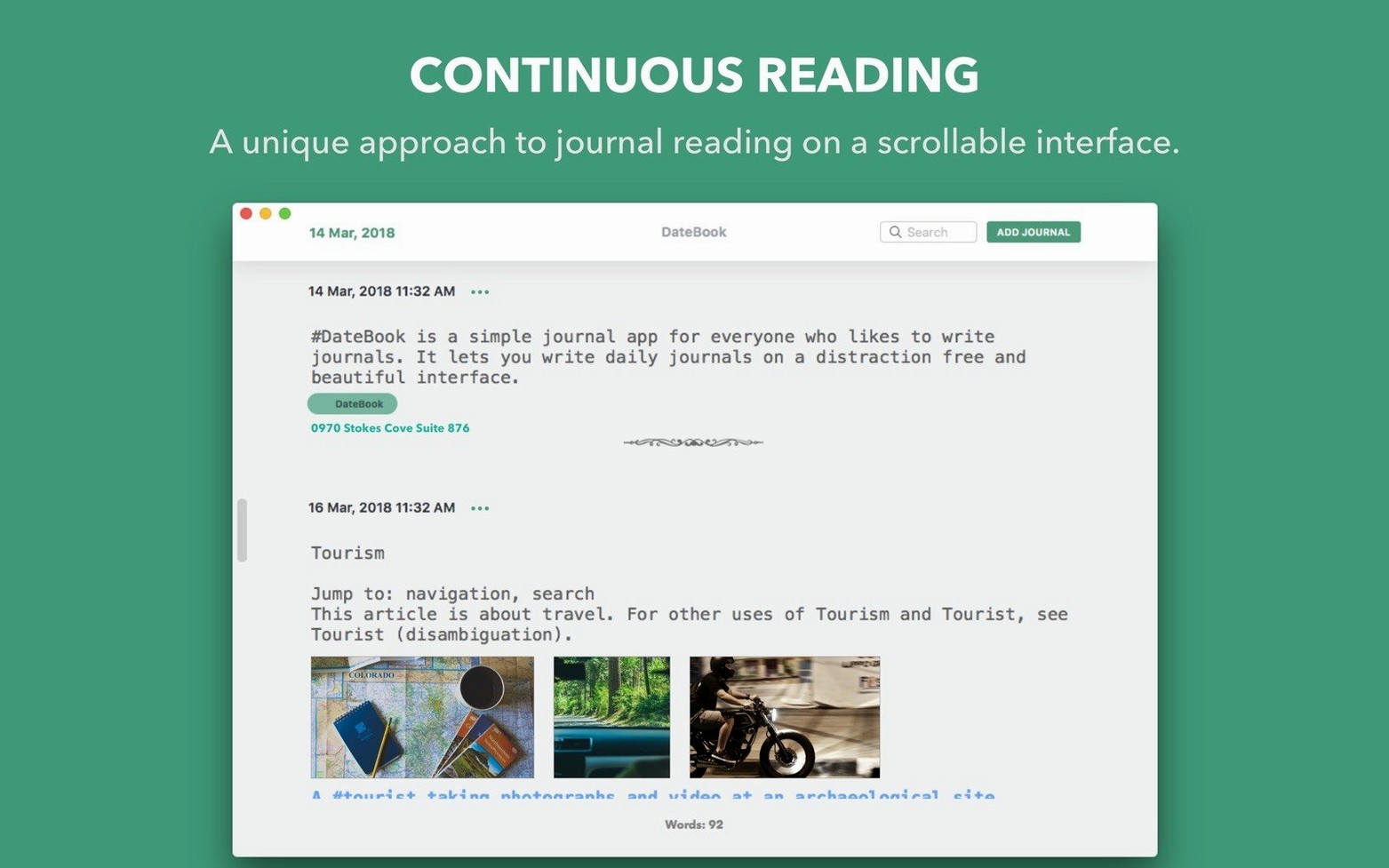
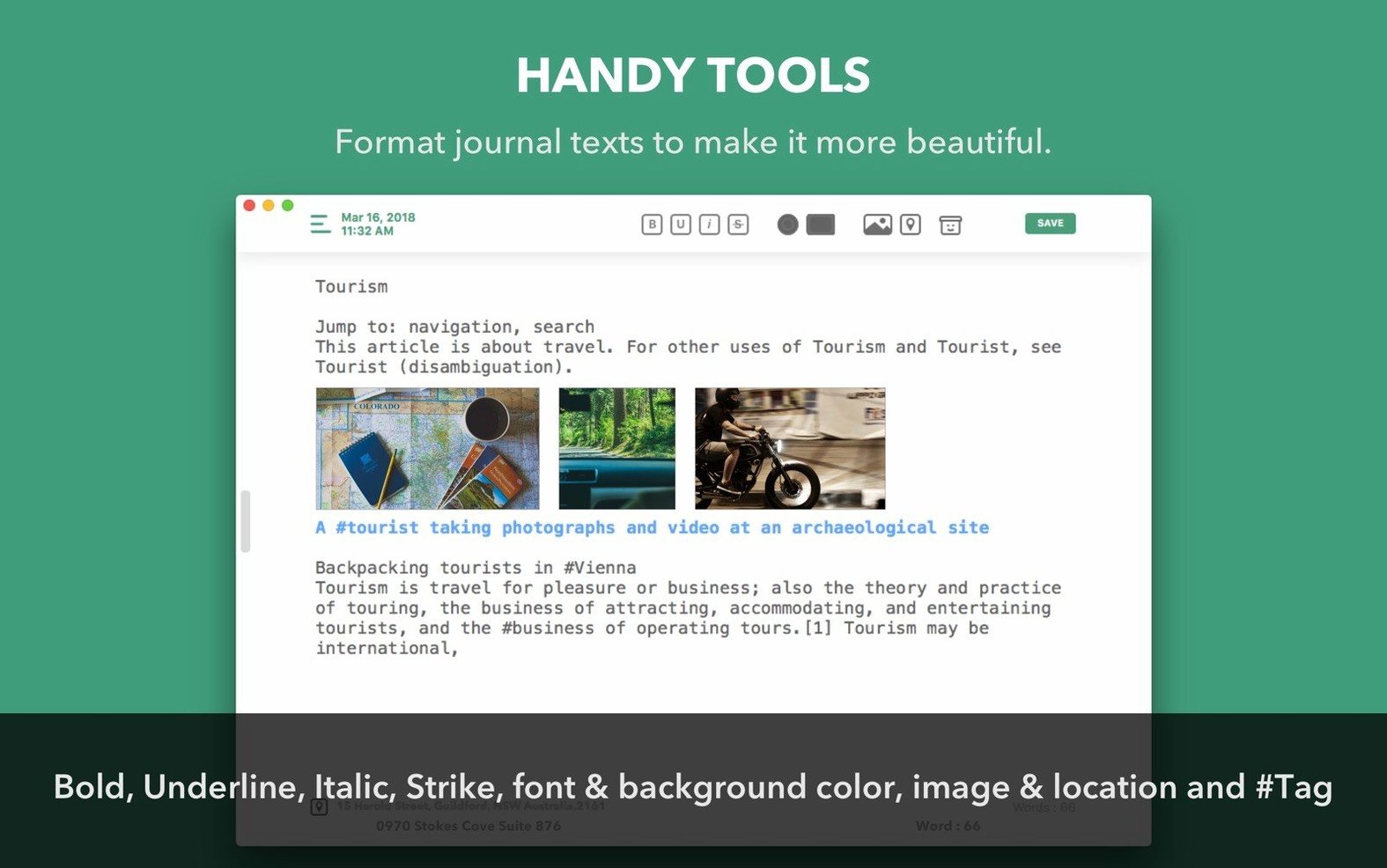
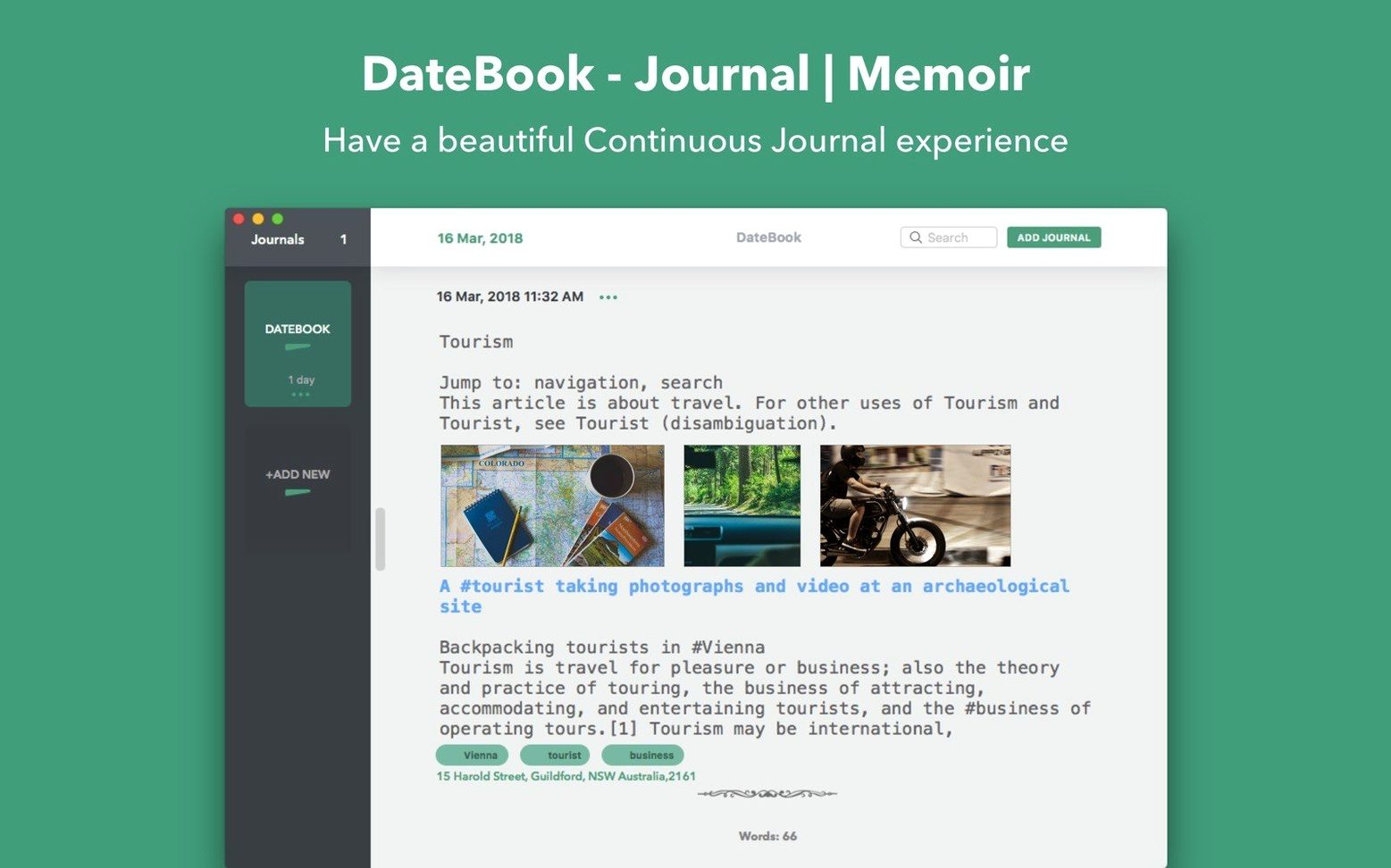
Quick text search finds any entry. That’s the feature that separates DateBook from a plain text file. The app saves every entry with date, time, and word count, and presents them in a scrollable list. It includes a built-in calendar for choosing the date and time of entries. It supports adding tags to entries. It can hide the left sidebar to make the app more compact. It supports printing entries or exporting them to PDF. Version 2.1.8 adds PDF export for the book. It supports password protection. It supports backup and restore of journals.
- macOS 10.13 or later
- Intel or Apple Silicon
- Interface in English
- Requires no internet connection
No custom cloud lock-in
Day One is the popular choice. It has more polish, more export options, and a sync service that costs money. It also pushes you toward its own ecosystem. DateBook does not. It syncs through iCloud, which you already pay for, and it does not nag you to upgrade.
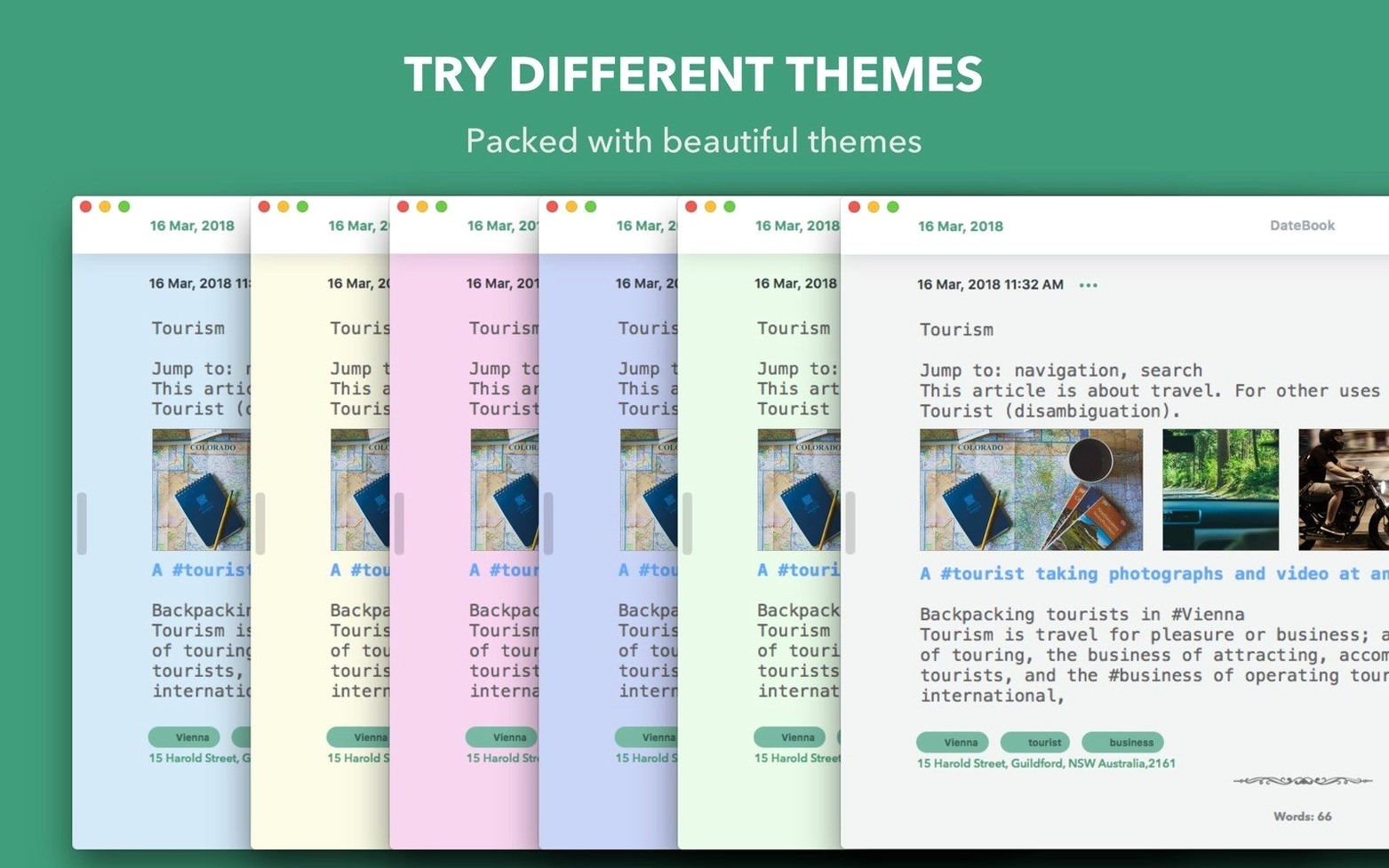
Diary is another option on the Mac. It is older, with a smaller font and a cluttered interface. DateBook feels cleaner. Its six themes and font controls let you adjust the look without diving into system settings. Diary also lacks search. DateBook finds entries in seconds.
Neither competitor offers a built-in word count per entry. DateBook shows it in the list view, next to the timestamp. Small detail. But it changes how you write.
A typical writing session
I open DateBook after breakfast. The app loads to today's date, no extra clicks. The left sidebar shows my topics — work, projects, personal. I click "personal" and start typing.
The interface is quiet. No toolbar visible until I need it. I write for ten minutes. The word count in the corner climbs. I finish and hit Cmd+S. The entry locks in with the current time.
Later, I want to find something from last month. I type "train" into the search field. Three entries appear. One is from a trip to Portland. I add a location tag and a couple of emoji to mark it for later. Then I export the whole topic to PDF to share with a friend. The export is clean — no extra margins, no page breaks in the middle of sentences.
At the end of the week, I use the backup feature to save a copy to a USB drive. The app creates a single file. Restoring it is one click.
iCloud sync and macOS share menu
DateBook uses iCloud Sync, not a custom cloud. That means your journals live in your existing Apple storage. No new accounts. No extra sync settings.
The app respects macOS sharing. From the share menu, you can send an entry to Mail, Messages, or any service you have installed. It feels native because it is.
PDF export works with Apple's print framework. You can also print directly, which is useful for physical backups. The password protection uses the system keychain, so you only enter it once per session.
DateBook does not try to replace your notes app or your calendar. It sits next to them. I keep it in its own desktop space, always open, always ready. That is enough.
DateBook is a simple journal app for people who write journals. It doesn’t try to be anything else.