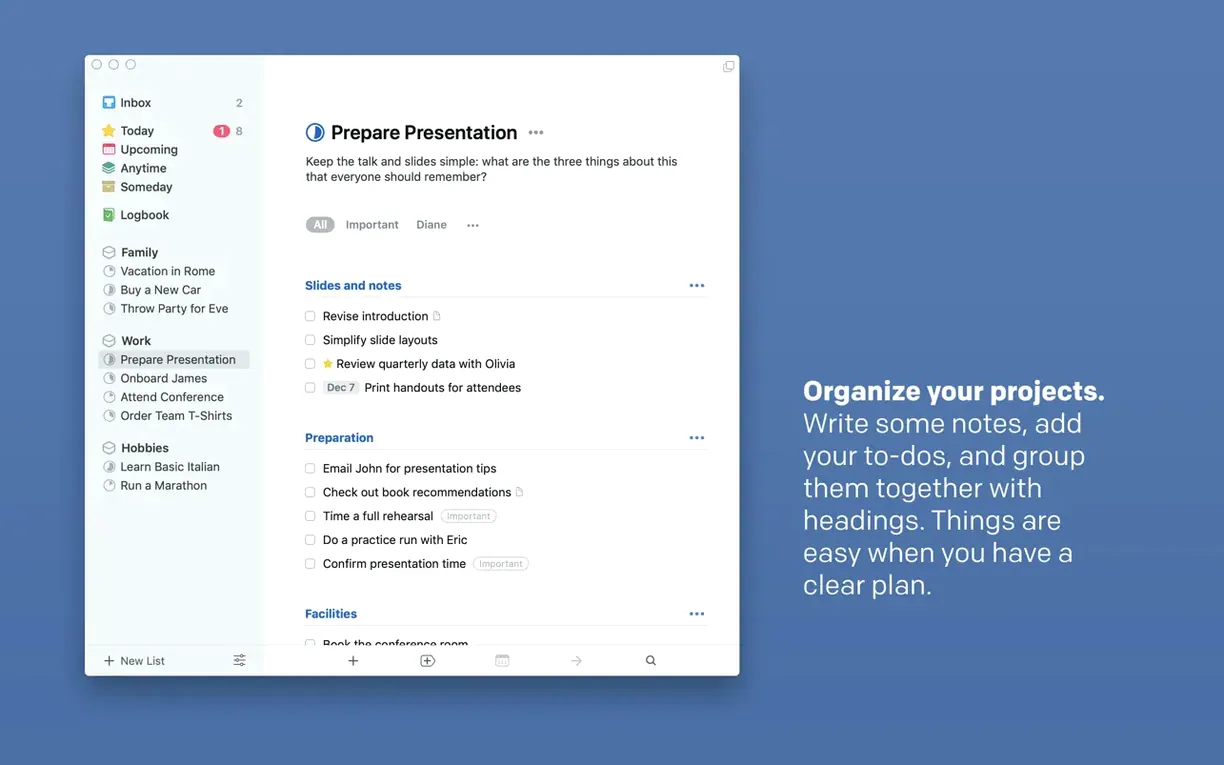
Headings keep the inbox honest.
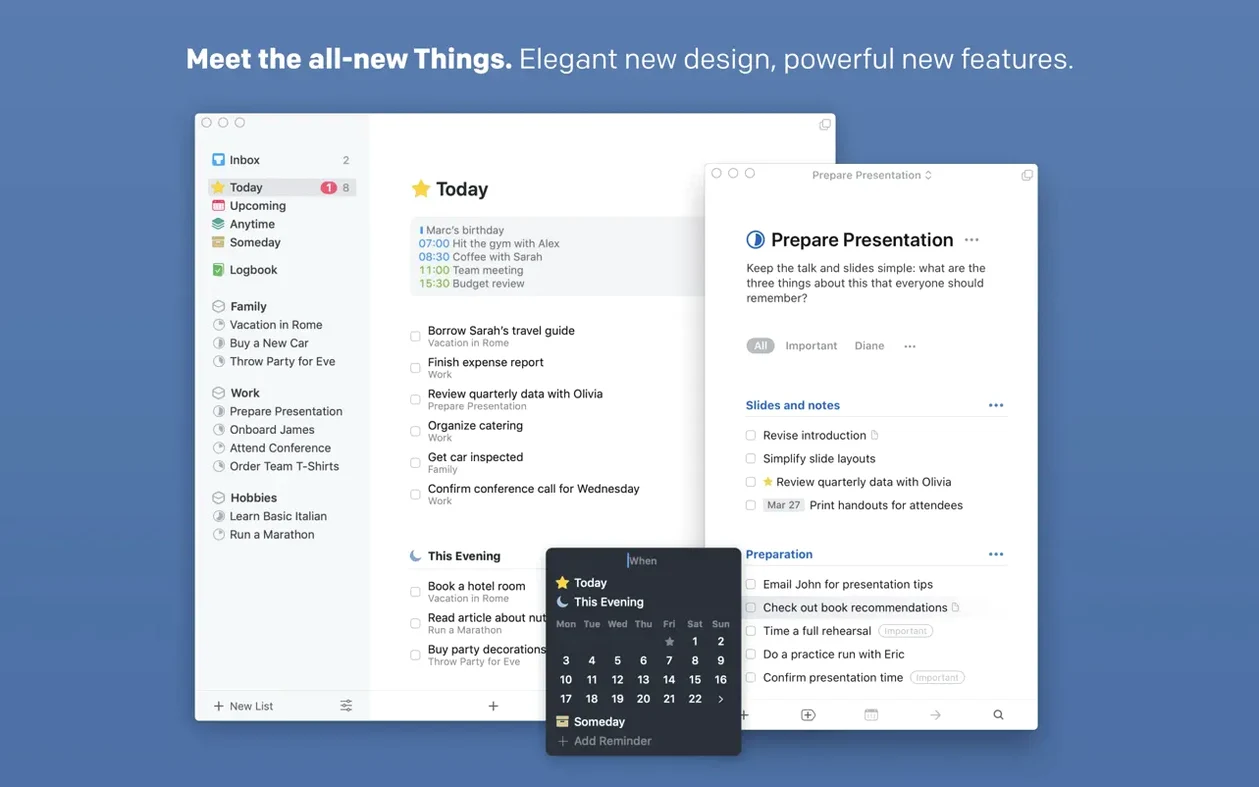
Areas — containers for the roles you play. Parent, freelancer, human. Each holds its own projects and keeps them from bleeding into one another.
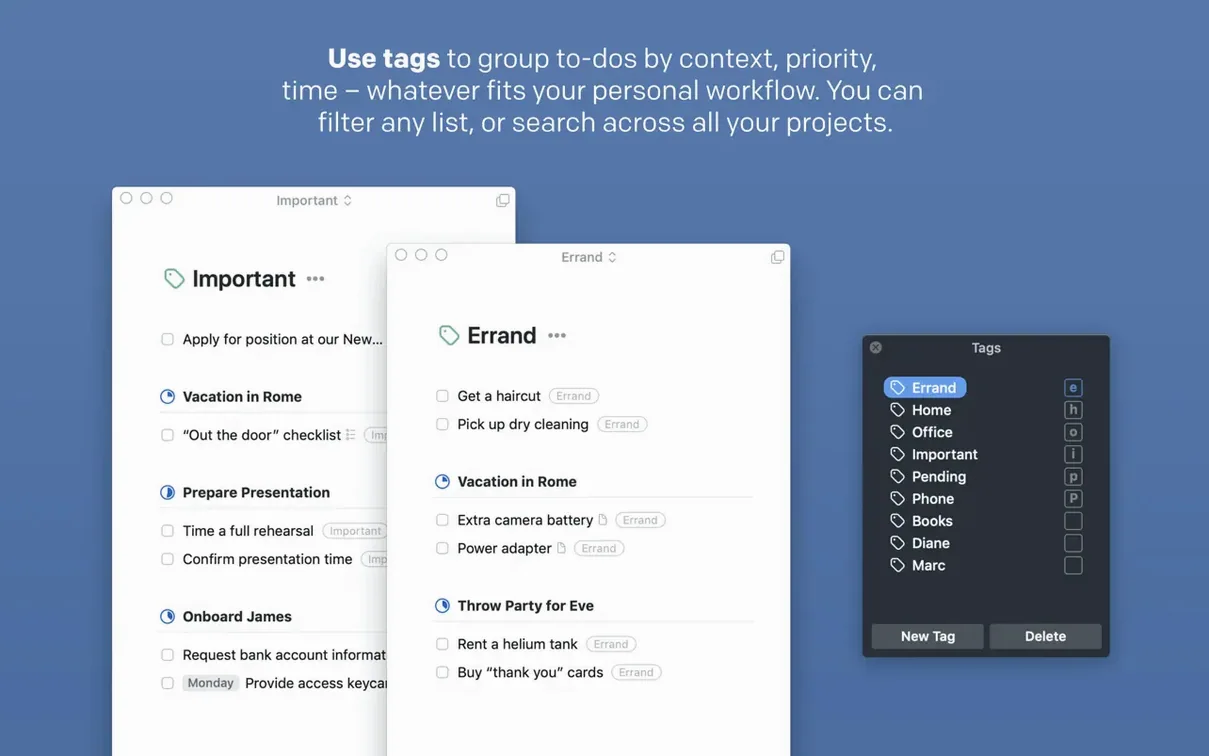
Tags — not folders, but a loose net. Tag by energy level, by tool, by context. Filter once, see only what fits the moment.
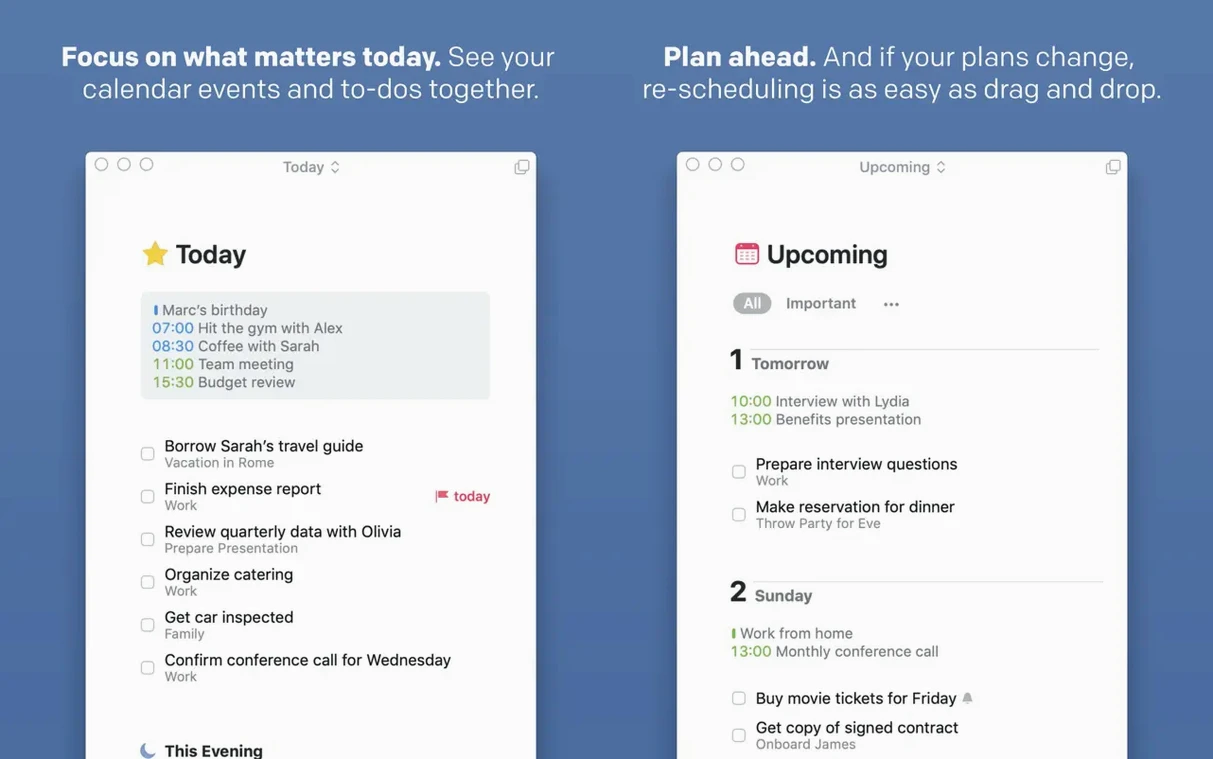
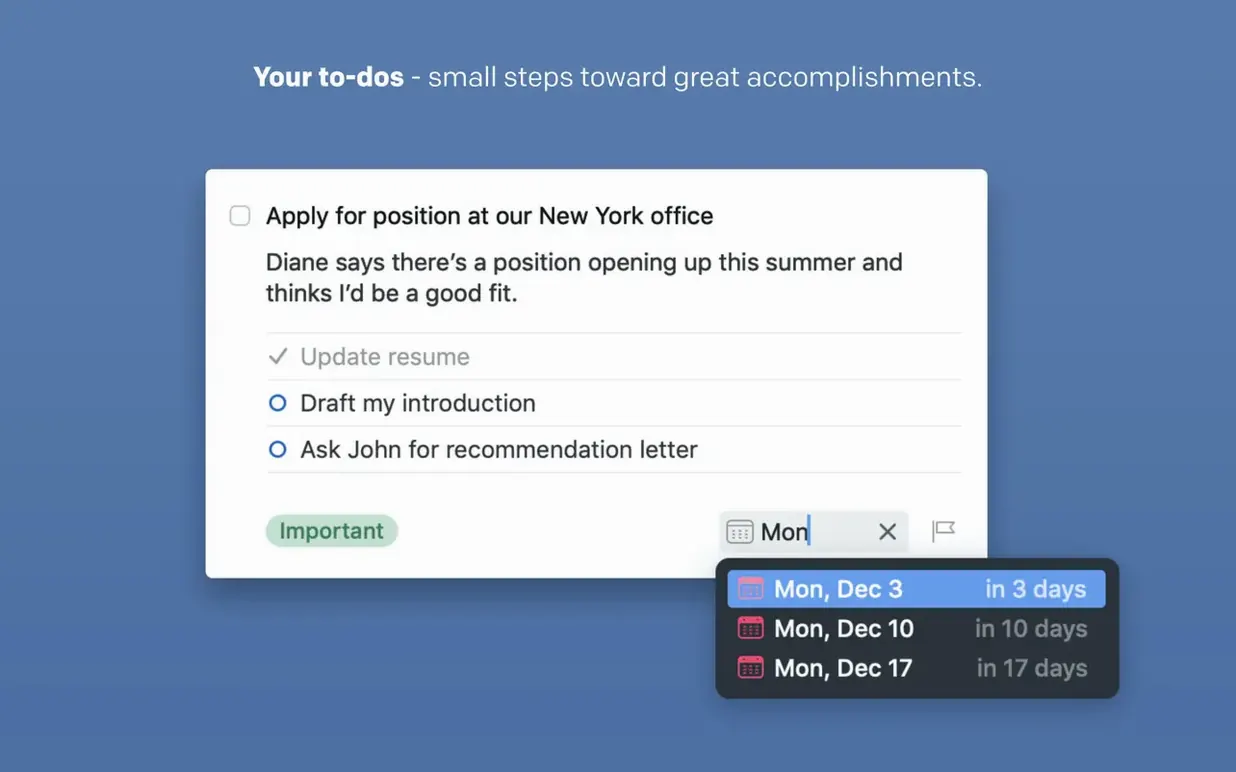
Today — a deliberate list, not a dump of due dates. You move things there by choice each evening.
Upcoming — a calendar and a task list in one column. Events from Calendar sit above your scheduled to-dos. You see the week whole, without switching apps.
Nearly zero footprint
Things stays out of the way. The window opens immediately—no splash screen, no loading spinner. On an M-series Mac, the app uses about 120 MB of RAM with a few hundred tasks spread across six areas. That number barely moves even with the widget running.
Sync is quiet. You make a change on the phone, glance at the Mac, and the badge updates within a second or two. No sync conflicts in daily use. The Things Cloud servers have been down once in the past two years, and the outage lasted under an hour.
Spotlight integration, added in things v3.24.0, pulls tasks into the system index without hogging CPU. You type a project name into Spotlight and the task appears alongside files and contacts. It feels native, not bolted on.
Needs a calendar
People ask if it replaces a calendar. It does not. Things shows calendar events inside Upcoming, but you still need a separate calendar app to create and edit them. The two apps share data; they do not merge.
Another common question: can multiple people share a project? No. Things is single-user. There are no shared lists, no assignee fields. If you collaborate on tasks daily, this is not the tool.
Some look for a Things 3 torrent or a Things 3 free download Mac search because they want to try before committing. The app has no demo. You learn it by using it light for a week—maybe just the Inbox and Today—then add Areas once those feel natural.
Sync requires a free Things Cloud account. Without it, the Mac app works fine alone, but your tasks stay on one machine. No iCloud, no Dropbox fallback.
Today overstuffing
The biggest one: treating Today like a catch-all. New users dump every open loop into Today, then stare at a list of thirty items and feel tired. Today is meant to hold what you can realistically move forward in a single day. Five to seven tasks. The rest stays in Anytime or their respective projects.
Another misstep is tagging everything. A task with five tags becomes noise. Start with one or two—context tags like office or phone—and add more only when a specific filter saves you real time.
People also overlook the Inbox clearing habit. They treat it as a second task list instead of a holding pen. The Inbox should be empty by the end of the day. Each item either becomes a project, gets a deadline, or is deleted.
Finally, ignoring deadlines for repeating tasks. A repeating task without a deadline disappears into Anytime and never surfaces when you need it. Give it a day and a time, and it shows up on schedule without further thought.
Quick Entry — a keyboard shortcut that catches a thought before it evaporates. No fields required, just type and return.